FileMaker Databases
Manage every hosted FileMaker database from one screen: upload, open, encrypt, compress, rename, and run batch developer-tool actions with ease.
On this tab you can find a list of all the FileMaker database files that are on the server. You can upload new database files to the FileMaker Server from here as well.
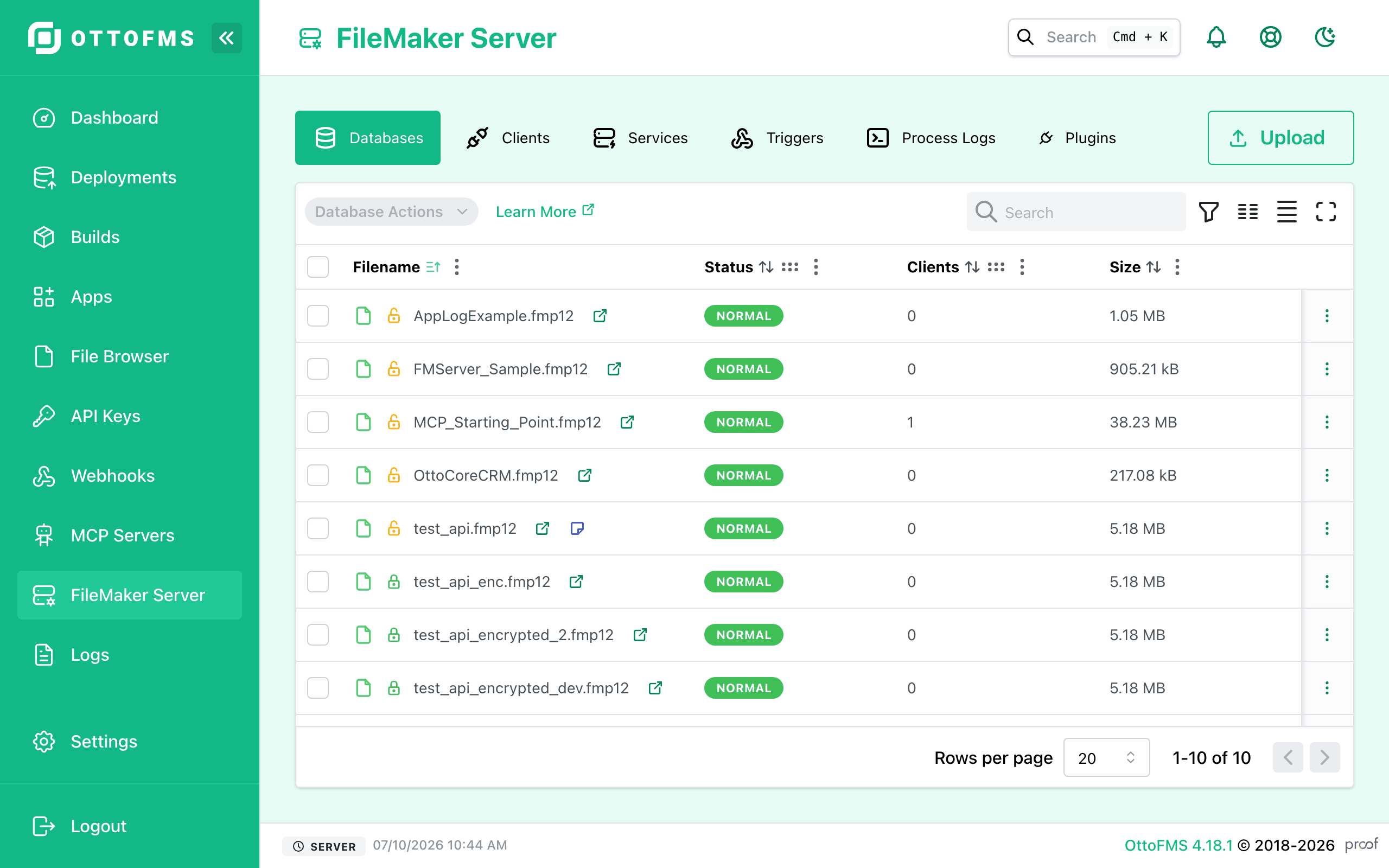
If you select multiple databases using the checkboxes on the left, you can perform many of the below actions on all selected files at once.
Uploading Files
Click the Upload button to upload one or more database files to the server.
OttoFMS uses a resumable uploader to allow you to upload very large files. If the upload is interrupted, simply select the same file again and the upload will resume from where it left off.
After the files are uploaded, OttoFMS will automatically open the files for you. If you upload an encrypted file, you must open the file manually and enter the encryption password.
File Actions
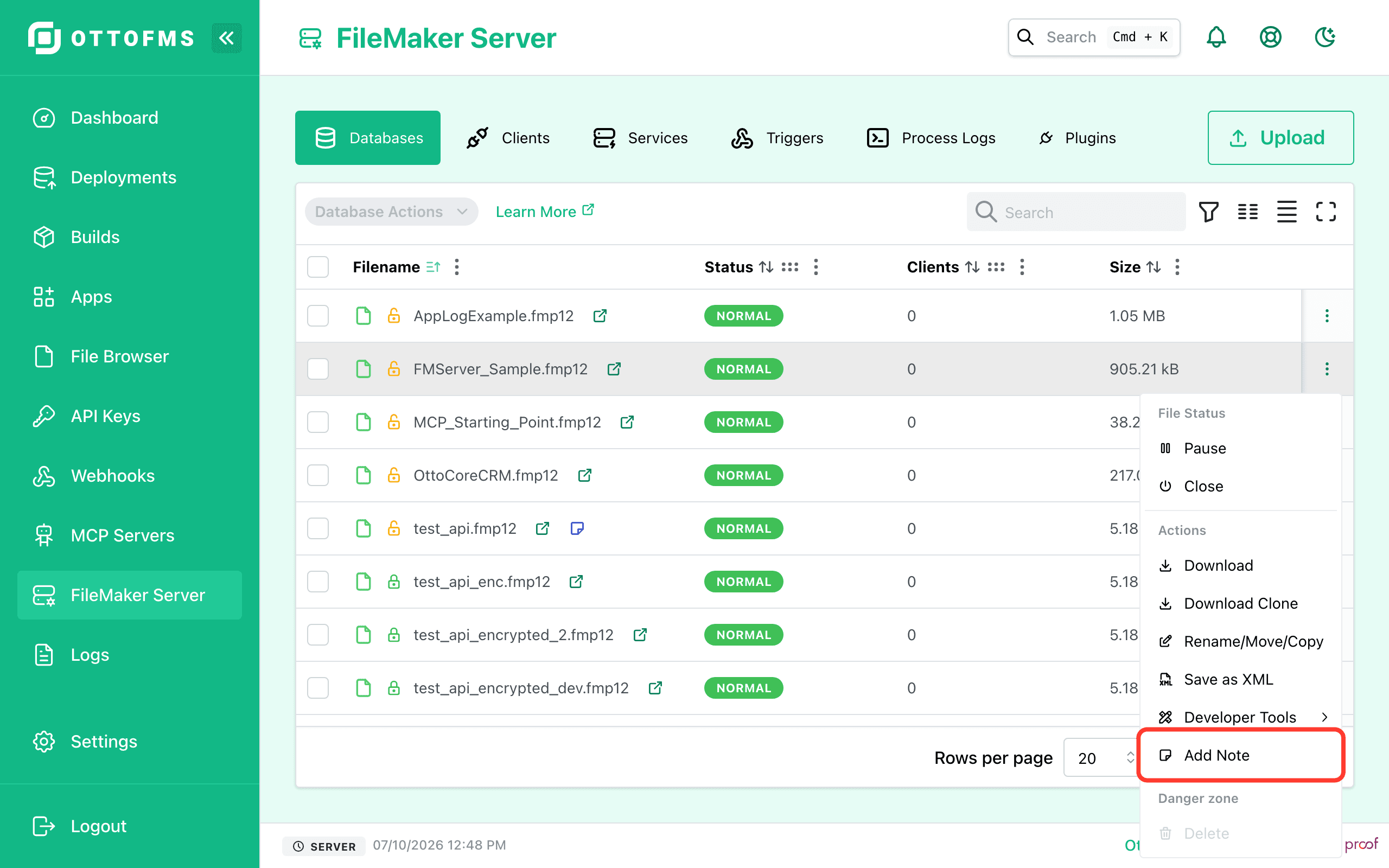
Click the three dots on the right to see the options for the database. You can use the menu to open, close, pause, resume, download, encrypt, decrypt, compress, save as xml, rename, move, copy, or delete the database file.
OttoFMS can download a hosted FileMaker file without needing to close it first. When you download a file from this interface, OttoFMS makes an ad-hoc backup of the file and then downloads the backup. When you download a clone, no data is included which can often result in a much smaller file size.
Files can be managed en masse by selecting multiple files and using the buttons at the top of the list.
Batch Actions
Batch actions require OttoFMS 4.17.0. Save as XML and the developer-tool actions (Encrypt, Decrypt, Check Consistency, Remove Admin Access) also require FileMaker Server 20.3 or later.
When you select multiple files, you can run any of the following actions on all of them at once: Encrypt, Decrypt, Copy & Compress, Check Consistency, Remove Admin Access, Save as XML, Download, and Download as Clone.
A Concurrency Limit setting controls how many files are processed at the same time — up to 25 for most operations, and up to 10 for downloads. Batch operations run in the background, and their progress appears in the Process Logs tab.
Renaming, Moving, and Copying Files
OttoFMS allows you to rename files by either selecting multiple and using the action menu at the top of the file list to rename them, or by clicking the three dots on the right of the file and selecting "Rename/Move/Copy". This will open a dialog where you can enter a new name for the file(s).
If you are renaming multiple files, you can use the FMDeveloperTool to do the rename. The FMDeveloperTool will properly handle external file references between files in your file set.
Renaming files will close all selected files, change the filenames, and reopen the files. This allows you to quickly rename multiple files without having to download and rename them locally.
When renaming files, you can optionally rename the container data folders alongside the files.
When using the FMDeveloperTool to rename files, new copies of the files will be created. If you are not using the FMDeveloperTool, you can choose to create copies of the files with the new name, move the files to a new folder, or rename the files in place.
When using the FMDeveloperTool to rename files, all of the destination files must be in the same folder. This is due to a limitation in the FMDeveloperTool, which requires that all files be in the same folder to maintain external references during the rename.
Prior to OttoFMS version 4.8.0, you could only rename one file at a time and could not use the FMDeveloperTool to do the rename.
Save As XML
This feature requires FileMaker Server 20.3 or later
You can use the Save As XML option to generate an XML representation of the database. Full Access credentials are required to generate the XML, then the XML file is downloaded to your computer. You can optionally save the XML file to the server Documents folder as well. The XML contains a timestamp so you can compare two versions of the same database to see what has changed using a tool like FMComparison.
Turn on Include Script Text to add script text and extra design information to the XML output.
When saving several files as XML at once, you can turn on Use same credentials for all files to enter one account, password, and encryption key that will be used for the whole batch. Leave it off to enter credentials separately for each file.
OttoFMS 4.18.0 adds an Advanced options section to Save As XML, available when the server is running FileMaker Server 26 or later:
- Catalogs — limit the XML output to specific DDR catalogs instead of including all of them.
- Split catalogs into separate files — output one XML file per catalog, delivered as a zip. This excludes the LibraryCatalog and automatically turns on standalone binary data.
- Standalone binary data — embed each layout object's binary data inline instead of referencing the deduplicated LibraryCatalog.
These options are also available in the OttoFMS API and the
save-hosted-file-as-xml MCP tool. On servers older than FileMaker Server
26, they appear disabled.
Developer Tools
These features require FileMaker Server 20.3 or later
Starting many of the Developer Tools actions will open up the Process Logs screen for the process you've just started so you can watch the logs in real time or abort the process partway through.
File Encryption
To encrypt a file, click the Encrypt option in the file menu. You will be prompted to enter a password for the encryption as well as an account and sharedId for the file.
To decrypt a file, click the Decrypt option in the file menu. You will be prompted to enter the password you used to encrypt the file and an account to use for running the decryption.
This operation can be done in place rather than saving as a new file. Performing the operation in place will create a new copy, delete the existing file, and rename the name file to the old file name.
Encrypting and decrypting run in the background, with progress shown in the Process Logs tab, so large files no longer time out.
Compressing Files
You can use the Save as Compressed option to reduce your database file size. This process reclaims unused space in the database file and rebuilds its structure to make it smaller.
This operation can be done in place rather than saving as a new file. Performing the operation in place will create a new copy, delete the existing file, and rename the name file to the old file name.
Copy Self-Contained
You can use the Copy Self-Contained option to create a copy of the file with all of its external container data included in the file. This can be used to convert a file with external container data to one with internal container data.
Recovering Files
If you suspect your file is corrupted, you can use the Recover option to run the FileMaker recovery utility on the file. This will create a new copy of the file with schema recovered by FileMaker.
The log generated by a recovery is saved to an OttoFMS_Process_Logs folder (visible in the File Browser under "FMS Backups") so you can review it later. You can also download it directly with the Download Recovery Log button on the recovery's entry in Process Logs.
Check Consistency
If you want to run a quick check to see if your files are consistent, use the Check Consistency option to run the FileMaker consistency check on the file. This will not fix any issues with the file, but it will give you a report of any issues that are found.
Remove Admin Access
Use the Remove Admin Access option to remove all Full Access accounts from the file. See the Claris documentation for a full list of what this process does to the file.
Reset File UUID
The Reset File UUID option allows you to regenerate the .fmp12 file's UUID.
Enable Kiosk Mode
Kiosk Mode can be used to display your FileMaker application in full screen on a monitor or touchscreen. You can use the Enable Kiosk Mode option to turn on Kiosk Mode for a file.
File Notes
OttoFMS 4.16.0 introduces the ability to add notes to files. These notes are a rich text description of the file that can be used to store helpful links, details on the file's purpose, or any other information you'd like to add.
To add a note, click the Notes button in the file menu. This will open a dialog where you can enter the note.
A file with a note has a small icon in its row that you can hover to view the note contents.
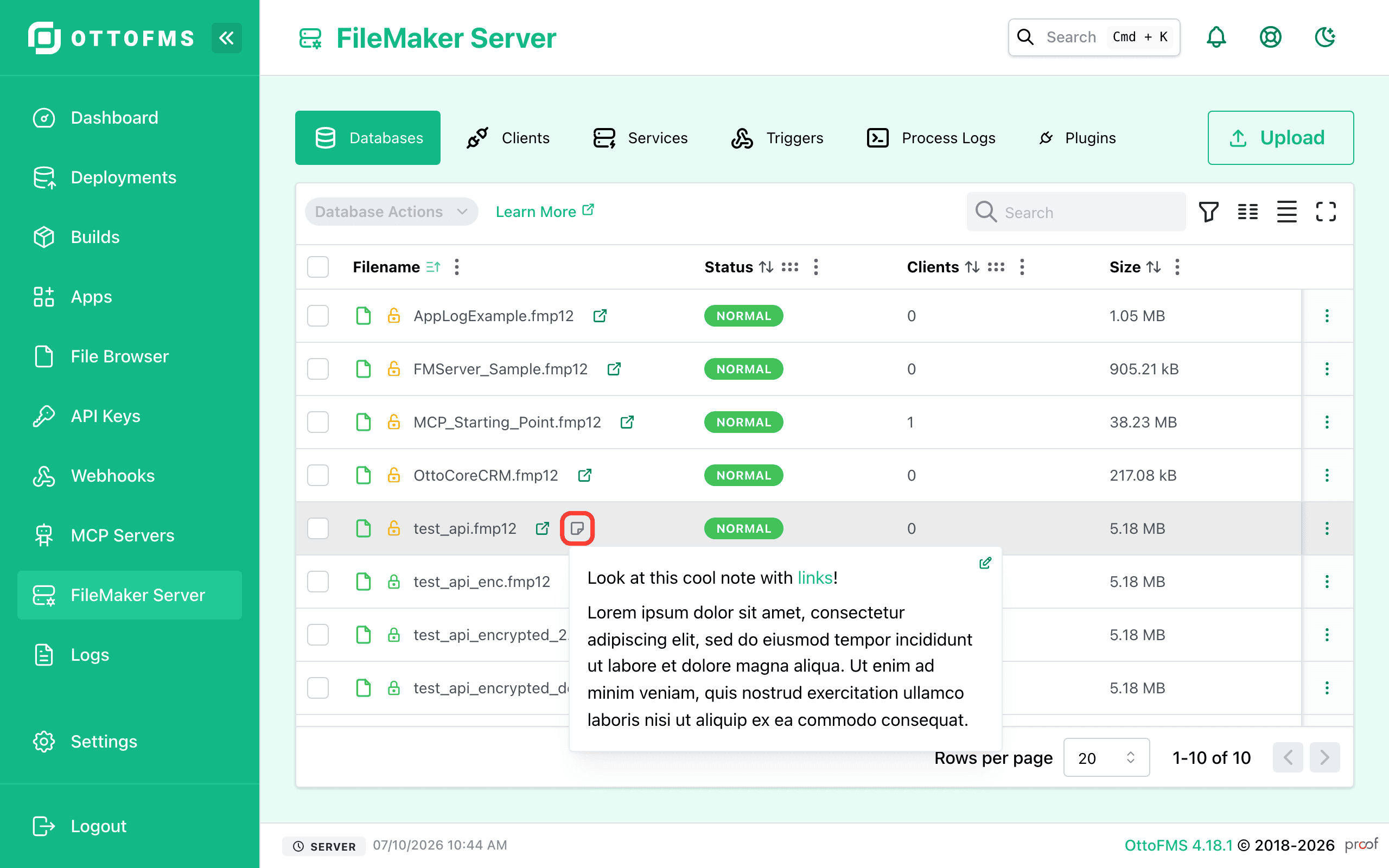
These notes are stored in the OttoFMS database. If there are notes on the server that do not have a matching file, a warning is displayed where users can remap or delete the notes.
As of OttoFMS 4.17.0, file notes (along with webhooks and MCP server settings) can be collected into a build and applied on the destination server during a deployment.
Was this page helpful?
FileMaker Server
Manage FileMaker Server databases, connected clients, services, triggers, process logs, and plugins from one convenient console section.
Connected clients
View everyone connected to your FileMaker Server, message or disconnect clients individually or in bulk, and see which files each one has open.