File Browser
Browse, upload, download, move, and restore files across your FileMaker Server directories, including live databases and offsite backup storage.
OttoFMS includes a File Browser that gives you access to all of the important directories on your FileMaker Server. The File Browser allows you to upload, download, rename, move, cut, zip, unzip, and delete files. You can also create new folders and restore backups of your files from the File Browser.
The "Live Databases" folder contains links to all of your servers Database and Container Data folders. You can download a live .fmp12 file from here — OttoFMS creates a safe copy of the file with an on-demand backup and downloads that copy, so the live file is never touched. You can also manage external container data and other files in these folders that are not live databases.
OttoFMS 4.18.0 adds the full set of database actions directly to live databases in the File Browser. Right-click (or use the three dot menu) on a live .fmp12 file to open, close, pause, resume, download, rename/move, run Save as XML or a developer tool, add file notes, or delete it — the same actions available on the Databases page. Live database rows also show their status and a link to open the file in FileMaker Pro.
Files in the Removed_by_FMS folder can be restored from here, returning them to their original database folder. FileMaker Server moves files into Removed_by_FMS on its own — for example, after a file fails a consistency check — so this is where you'll find them if that happens. You can also rename a file as part of restoring it.
The "Offsite Storage" folder (introduced in OttoFMS 4.9.0) contains links to the offsite storage locations you set up in the Offsite Backup Settings page. You can download, delete, and restore files from these locations within the File Browser. At this time, you cannot restore files from offsite locations with their container data, so any restoring of container data has to be a more manual process.
Starting in OttoFMS 4.18.0, logs from file recovery runs are saved to an OttoFMS_Process_Logs folder inside "FMS Backups" so you can review them later. You can also download a recovery log directly from its entry in Process Logs.
For certain files and folders in the File Browser, you can get a pre-signed URL to download the file/folder from the right click menu or the three dot menu on the right side of the file/folder. This is useful if you need to send a file to a client or partner without having to manually upload the file to a shared location.
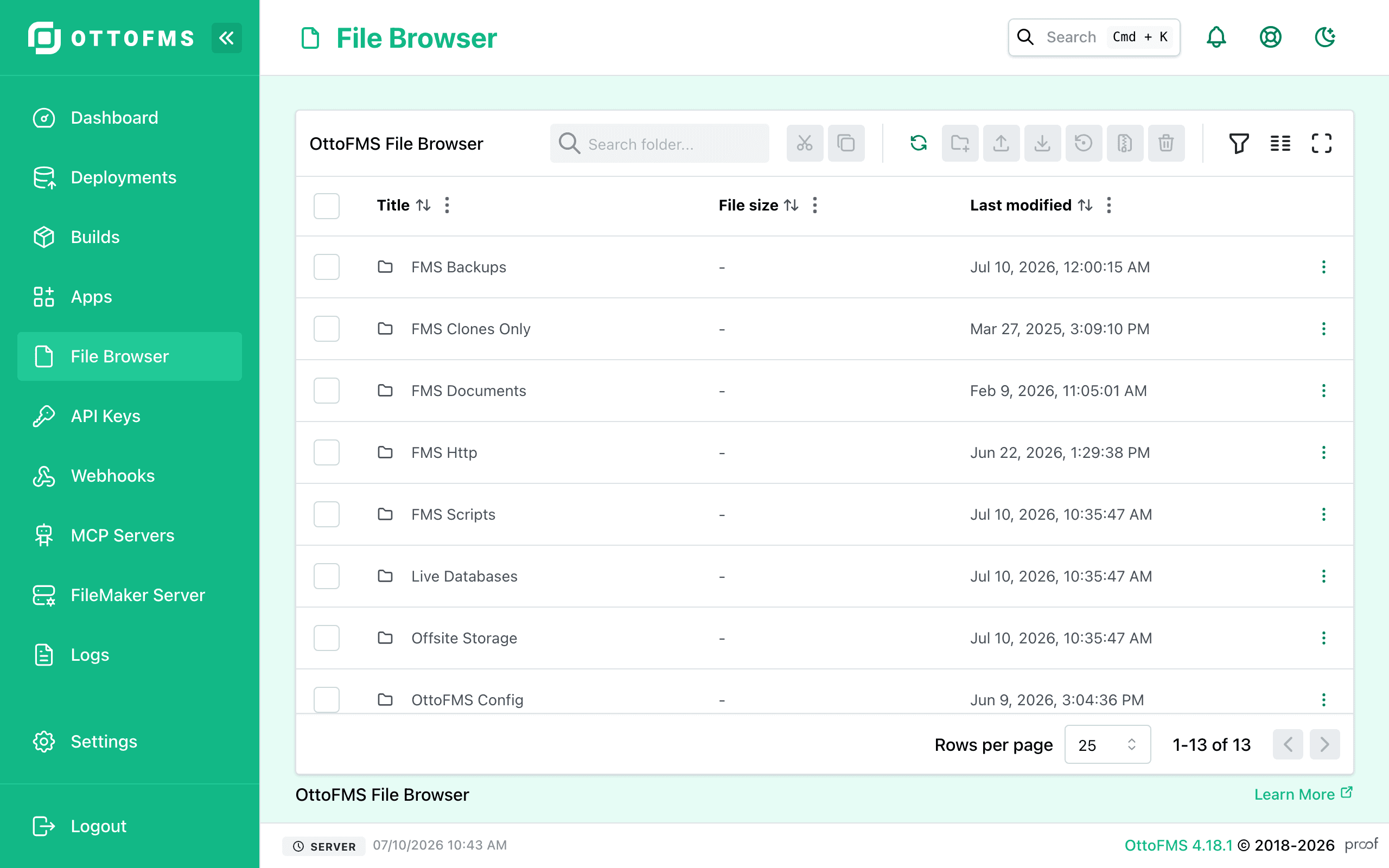
The File Browser is also available from the Server Dashboard in the Ottomatic Cloud Console.
Moving Files
You can cut or copy files and paste them elsewhere in the File Browser, including to and from your Offsite Storage locations. When moving files into offsite storage, paste them into a bucket or subfolder inside a location — you can't paste directly into the top level of Offsite Storage or into the root of a location.
Uploading Files with the Same Name
If an upload would overwrite a file that already exists, you'll be prompted for each file to Skip, Overwrite existing, or Rename it. You can also choose to apply your choice to all of the conflicting files at once.
Keyboard Shortcuts
The File Browser supports keyboard shortcuts for cut, copy, paste, delete, select all, rename, and folder navigation, including Cut (⌘/Ctrl+X), Copy (⌘/Ctrl+C), and Paste (⌘/Ctrl+V).
Was this page helpful?