Google Groups OAuth
Set up Google Groups OAuth in OttoFMS to grant FileMaker file access by group instead of managing individual user accounts.
OttoFMS can be configured to work with FileMaker OIDC to extend the Google OAuth flow by adding Google Groups to the user information. This allows you to allow access to a FileMaker file to specific groups of users rather than individual users when using the Google Authentication flow.
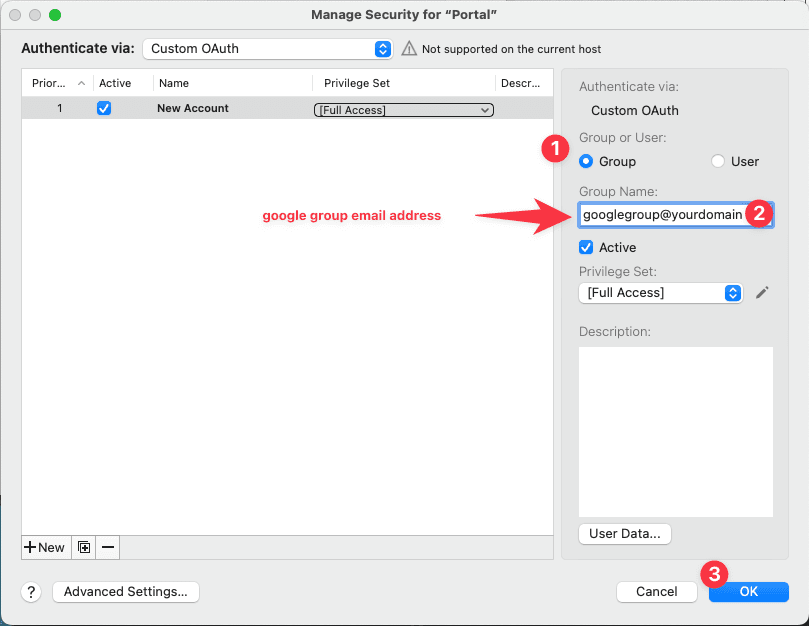
Every Google Group gets an email address in the form groupname@yourdomain.com. Once OttoFMS is properly configured you can use that group email as the "Group" in FileMaker's security setup.
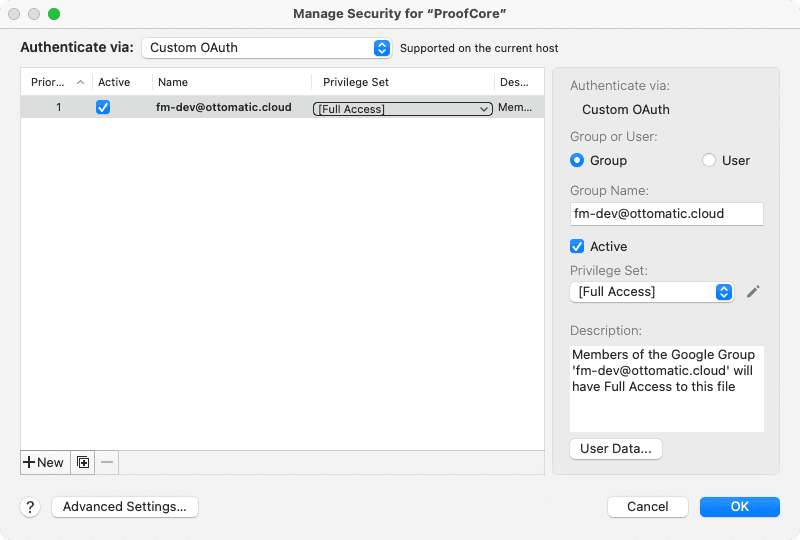
How is this different than FileMaker's built in Google OAuth?
FileMaker has built in Google OAuth support, but the built in support works with individual users and not with groups. OttoFMS extends the Google provider to pass along group information, reducing the amount of ongoing user management you need to do.
Setup
Setting up Google Groups OAuth will require configuration in the Google Cloud Console, the OttoFMS web console, the FileMaker Admin Console, and in the FileMaker files you wish to use this feature in.
Google Cloud Console
OttoFMS needs access to your Google system through a Service Account OAuth client in order to fetch the groups for a given user. This client can be restricted to only allow getting group and group membership information. This is read-only access to groups and group members. Nothing else in your google account can be accessed or updated.
OttoFMS will also require the email address for an admin user on the Google Account to get the information. If you are an Admin in your google account, your email address will work. If you aren't then you will need to ask your Google Account administrator to give you an email address that is an Admin.
Service Account Setup
Follow the FileMaker Server OAuth instructions
Start by following the FileMaker Server OAuth instructions for Google.
Choose the project that you used to set up your FileMaker Server Oauth Client

'fms-oidc' is the name of the project in this walk-through. Your name will be whatever you set it to be.
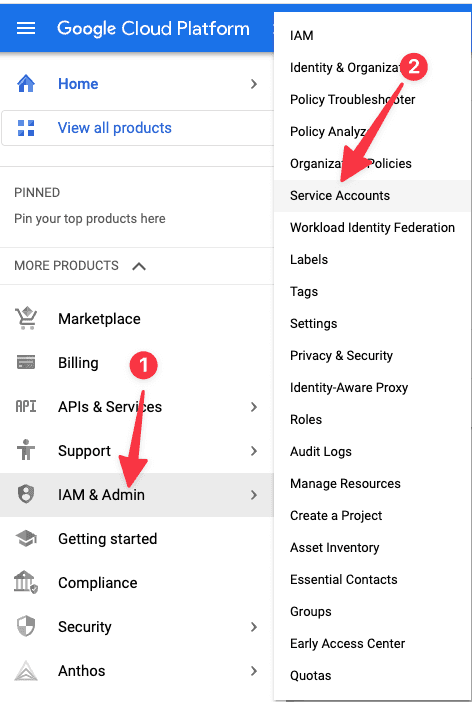
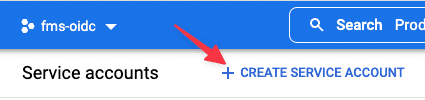
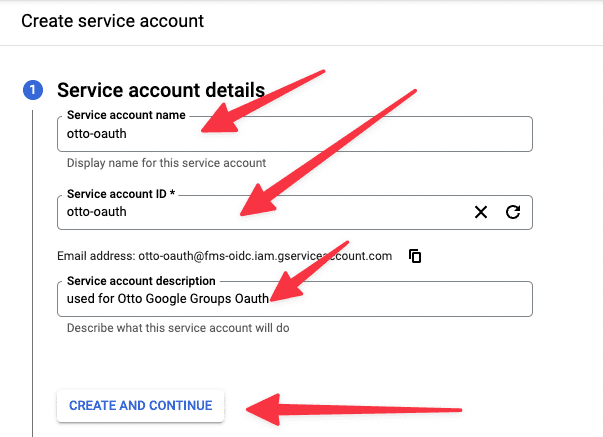
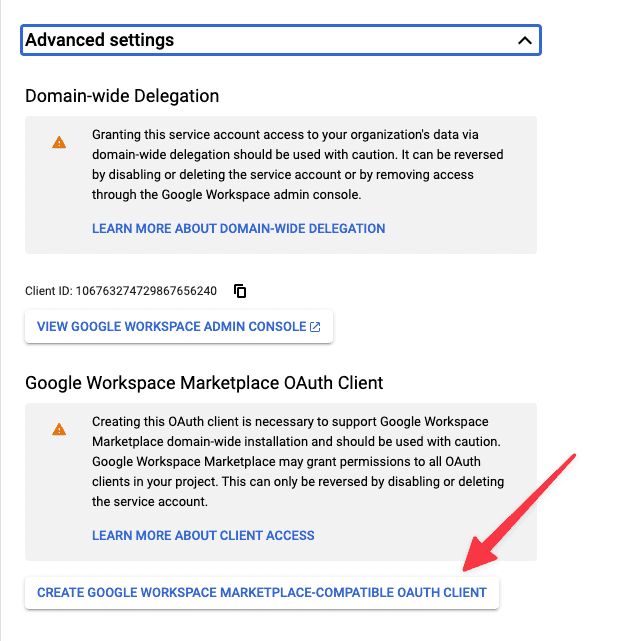
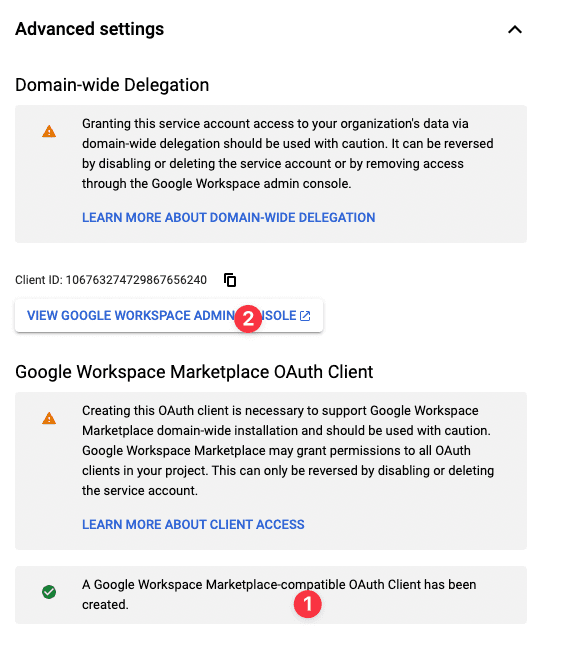
Add New
Paste the Client ID you copied earlier into the "Client ID" field.
Add the following into "Oauth scope comma delimited":
Navigate back to the Service Accounts Page
Make sure the correct project is selected in the top left.
Click on your new Service Account.
Choose "JSON" and then "CREATE"
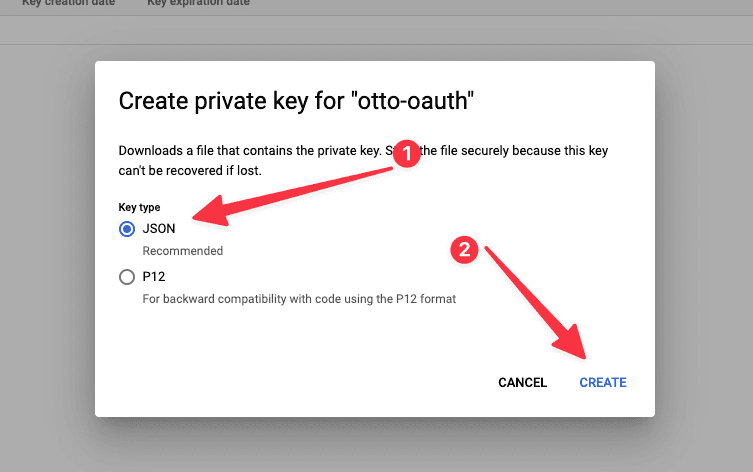
This JSON file will be downloaded to your computer and will be required in the OttoFMS setup next.
OttoFMS Setup
To upload the Google OAuth settings to OttoFMS, you'll need to go to the OttoFMS config settings and upload the JSON file you downloaded earlier.
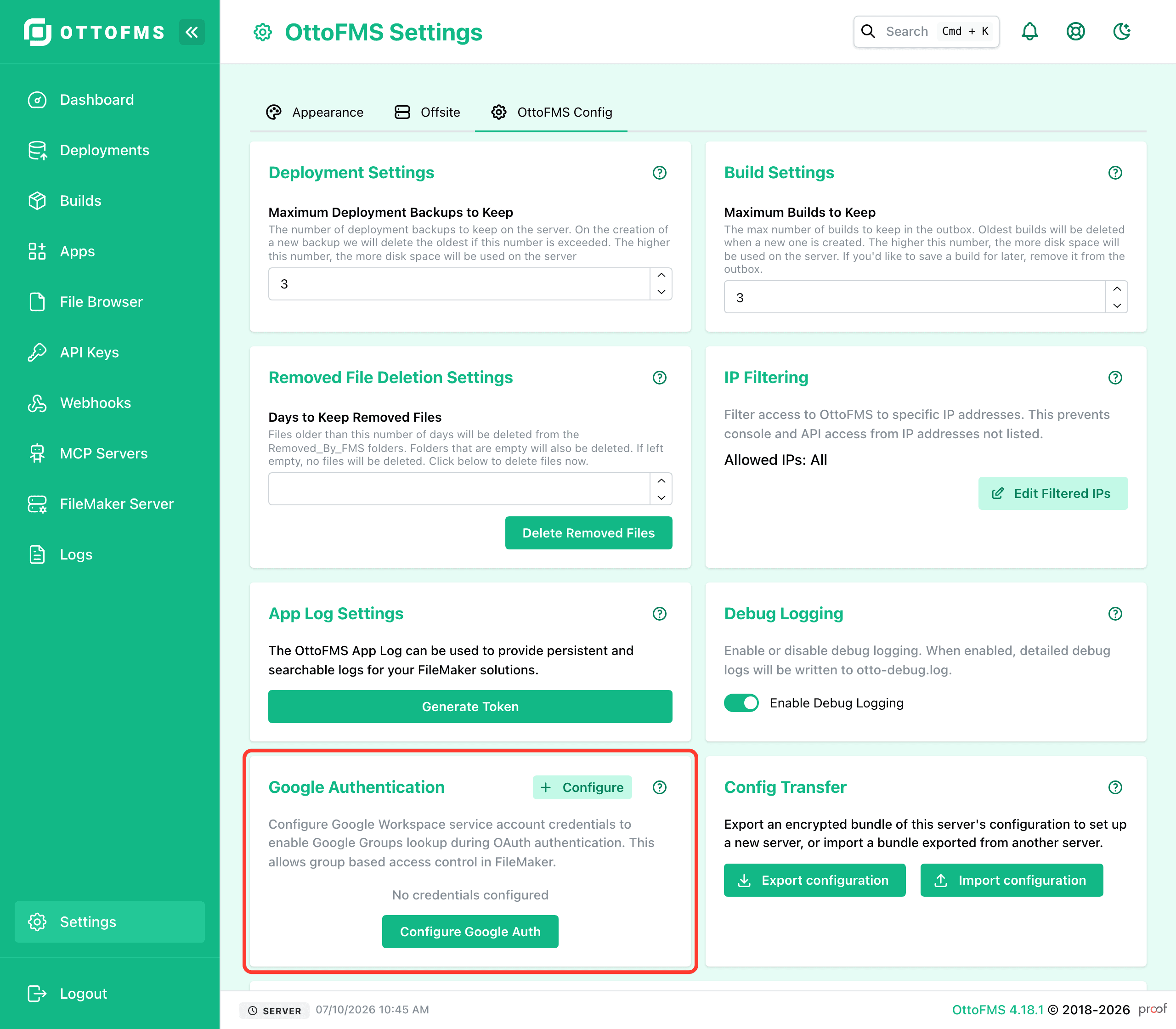
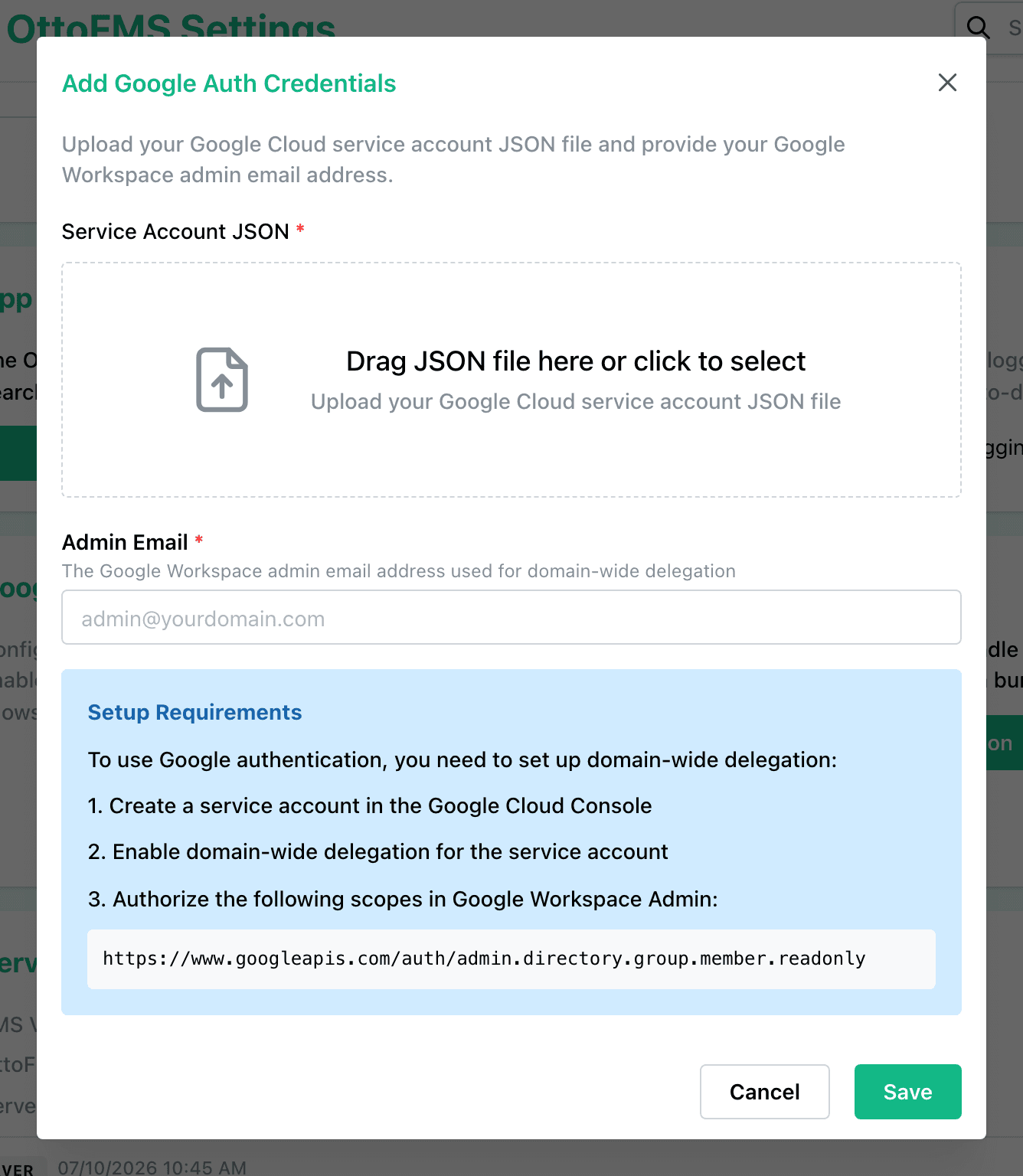
This will save the google OAuth settings (with the Private Key encrypted) to the OttoFMS database.
FileMaker Admin Console Setup
To use the Google Groups OAuth in FileMaker, we need to set up a custom IdP in the FileMaker Admin Console.
Navigate to the External Authentication Settings
FileMaker Admin Console > Administration > External Authentication Settings
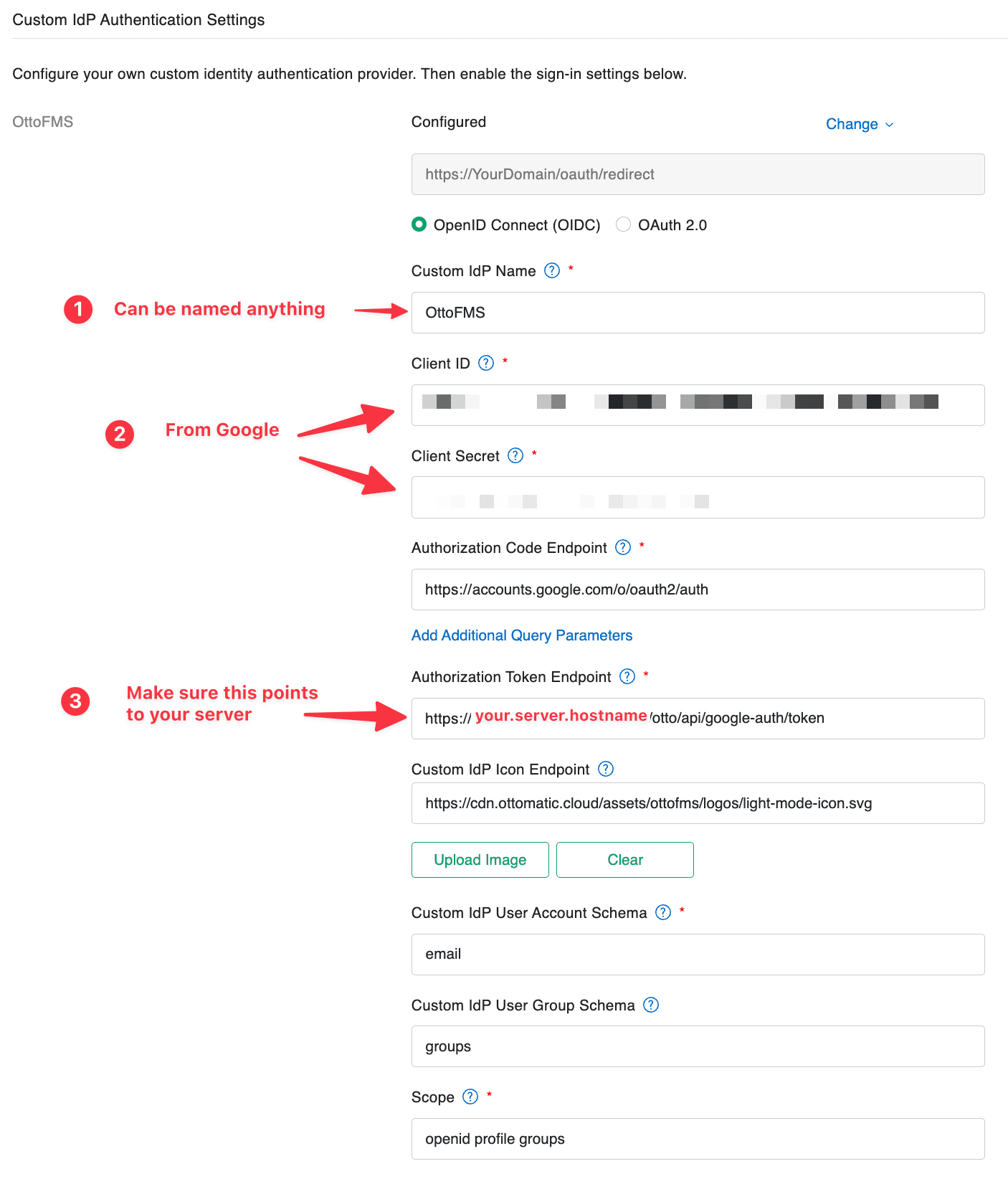
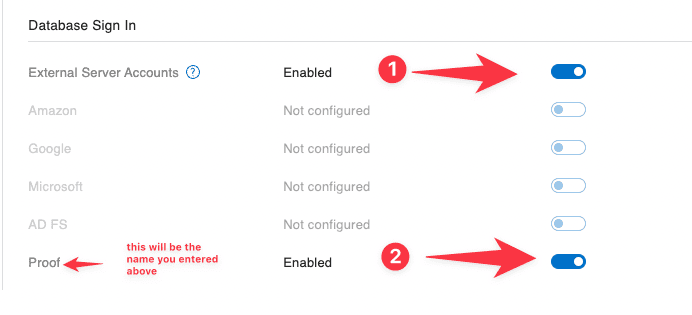
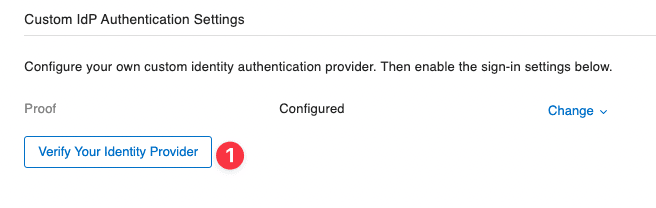
FileMaker File Setup
Finally, to get users into your files, you'll need to set up accounts for the groups you want to provide access to in the FileMaker files.
Was this page helpful?
Settings
Configure OttoFMS appearance, offsite backups, backup schedules, IP filtering, logging, and licensing from the console settings page.
Offsite Backup Providers Configuration
Find connection settings and setup notes for configuring Ottomatic Cloud, Amazon S3, Wasabi, and Backblaze B2 as offsite backup providers.