Server Dashboard
Manage files, databases, clients, deployments, and settings for a single server from one OttoFMS-powered dashboard in the Cloud Console.
The Server dashboard is the main area to do file and client management in the Cloud Console. Powered by OttoFMS, it advances your server management capabilities in the Cloud Console.
Heading
The top of the server dashboard has some quick links for the server:

-
The current time in the timezone of your server.
-
The Favorite icon. Use this button to favorite or unfavorite your server. If it is filled in this server is favorited.
-
OttoFMS link. Use this to quickly open up the OttoFMS console for this server.
-
FMS Admin link. Use this to quickly open up the FileMaker Admin Console for this server.
-
The Ottomatic/On-Prem icon. This displays an icon designating the server you are looking at as an Ottomatic hosted server or an on-prem server or server hosted elsewhere.
Dashboard
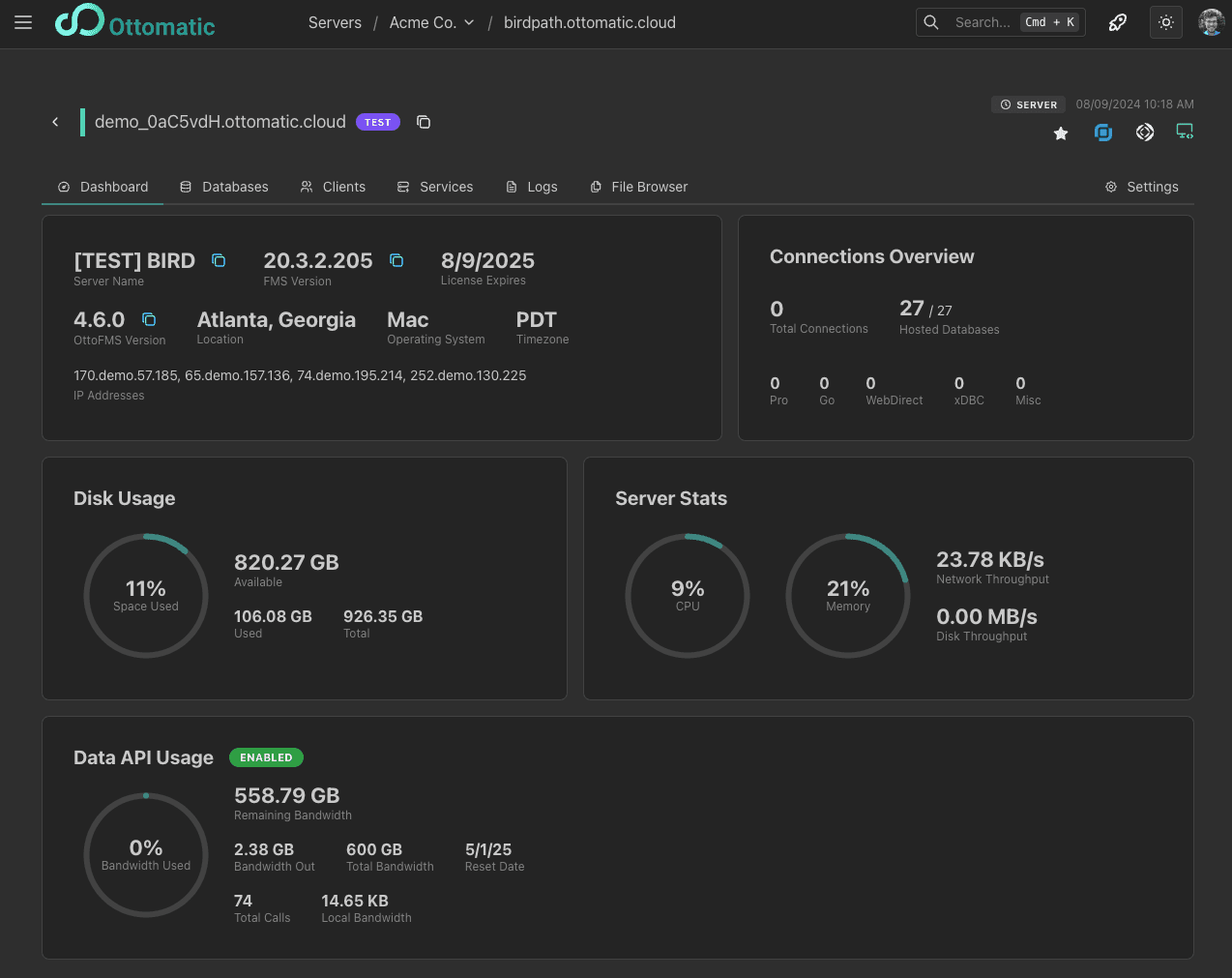
The Server Dashboard's Dashboard tab is an overview of the state of your server. It displays basic server information, current count of open clients, disk usage, and other server stats.
Monitoring
For Ottomatic-hosted servers, the Monitoring tab gives you a deeper look at your server's health over time. See the Monitoring page for details.
Deployments
The Deployments tab lists the deployments sent to this server, along with their status, and lets you start a new one. See the Deployments page for details.
Builds
The Builds tab is where you create, run, and publish the builds configured on this server. See the Builds page for details.
Data API Keys
The Data API Keys tab manages the keys used to reach the FileMaker Data and OData APIs through OttoFMS. See the API Keys page for details.
Webhooks
The Webhooks tab manages incoming webhooks that let outside services trigger FileMaker scripts on this server when something happens. See the Webhooks page for details.
MCP Servers
The MCP Servers tab manages the OData MCP servers that expose your FileMaker files to AI clients. See the MCP Servers page for details.
File Browser
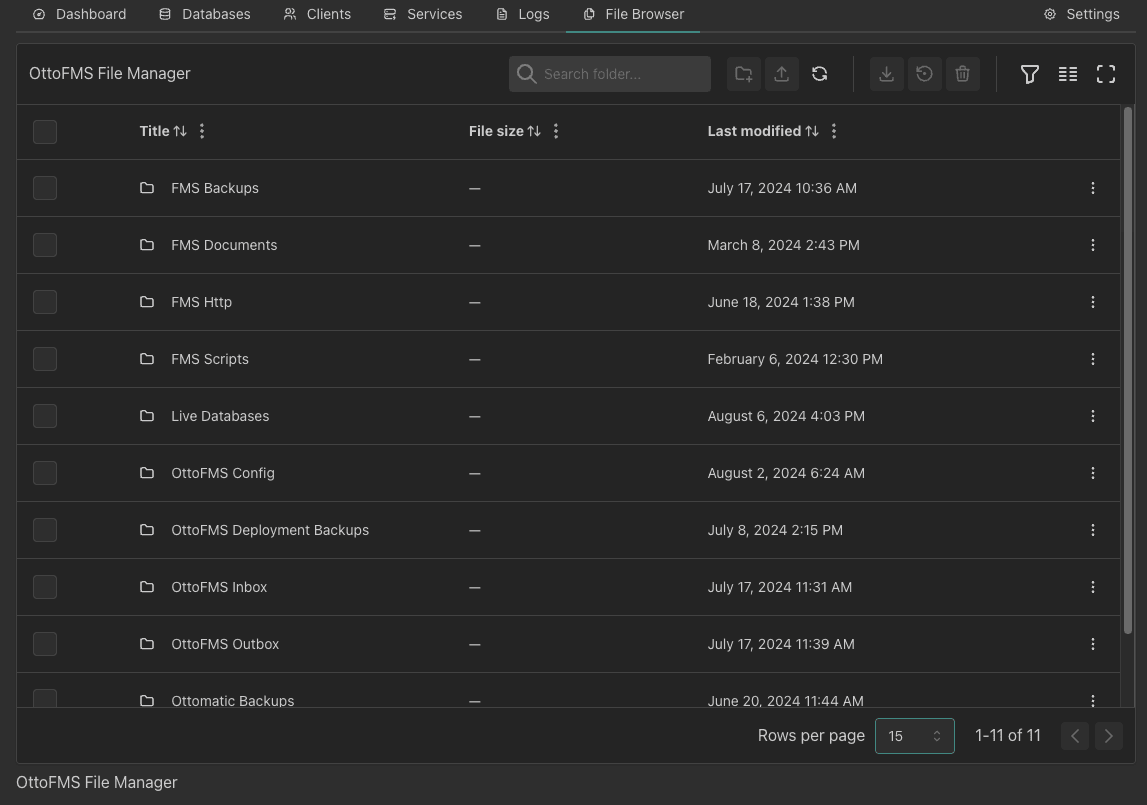
The File Browser tab lets you manage your server's file system without connecting via remote desktop or FTP. it enables access to FileMaker and OttoFMS folders, as well as backups and more. If you have a backup you need to restore, you can also restore the backup directly from the File Browser by right clicking.
Live database files show their current status right in the File Browser, along with an "Open in FileMaker Pro" option. Right-clicking a file (or a multi-selection of files) opens the same set of database actions available from the Databases tab, so you don't need to switch tabs to manage a file you found in the File Browser.
When restoring a backup, each file in the restore dialog shows whether it will be installed as a new file or will replace an existing one, so you know what to expect before you confirm the restore.
Databases
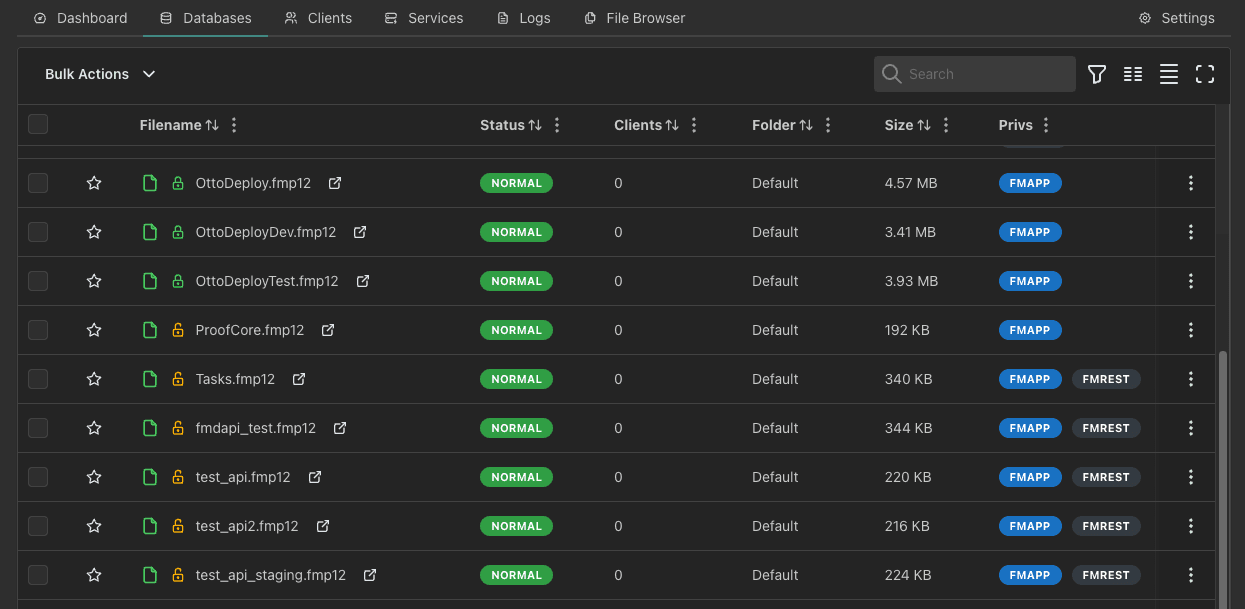
FileMaker database management starts here. Select multiple files using the checkboxes to run actions on all of them at once, including open, close, pause, resume, send to another server, download, download clones, Save as XML, and developer-tool actions like encrypt, decrypt, check consistency, and remove admin access.
Batch actions require the server to be running OttoFMS 4.17.0 or later. Save as XML and the developer-tool actions also require FileMaker Server 20.3 or later. Renaming, moving, or copying files requires OttoFMS 4.8.0 or later.
See the FileMaker Databases page for the full list of available actions.
Triggers
OttoFMS servers have a Triggers tab for managing OData webhook triggers, which notify an endpoint of your choice when data in a FileMaker table or field changes. See the FileMaker Triggers page for details.
Process Logs
The Process Logs tab keeps a history of the developer-tool operations run on your files — such as recovering a file, saving as XML, encrypting, or removing admin access. Each entry shows the type of process, the files involved, and its start and end times. You can watch a running process live or review a completed one, and abort a process that is still in progress. See the Process Logs page for details. Requires the server to be running OttoFMS 4.17.0 or later.
Plugins
The Plugins tab lets you install FileMaker Server plugins for the Scripting Engine, Web Publishing Engine, and Data API Engine, restart the affected engine(s) to load them, and remove plugins you no longer need. See the Plugins page for details. Requires the server to be running OttoFMS 4.18.0 or later.
Clients
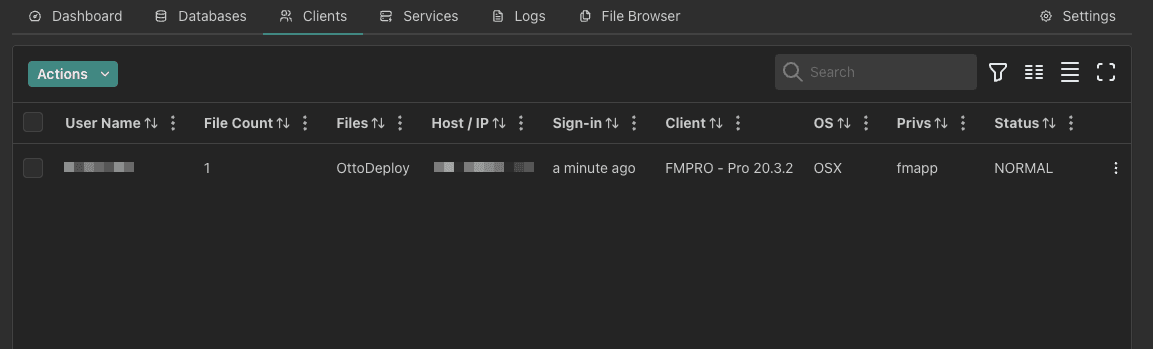
The Clients tab will display all currently connected FileMaker clients on this server. You can send clients messages and disconnect them right from here.
Services
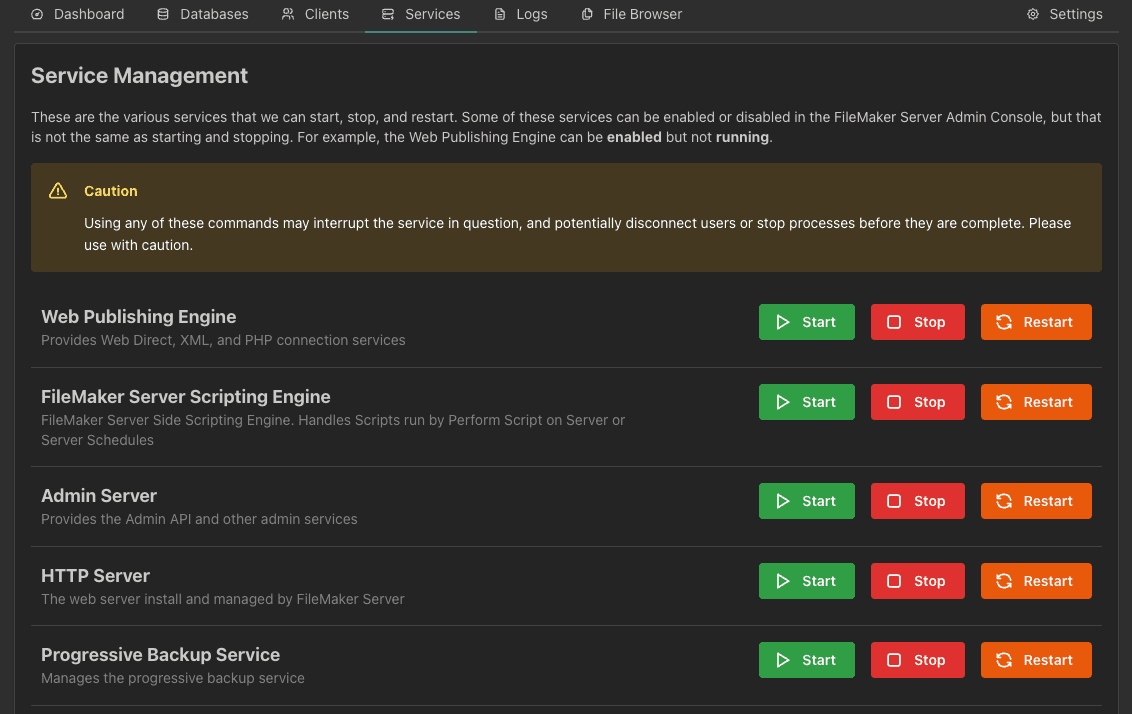
The Services tab lets you start, stop, and restart all of the FileMaker processes, as well as OttoFMS itself.
Logs
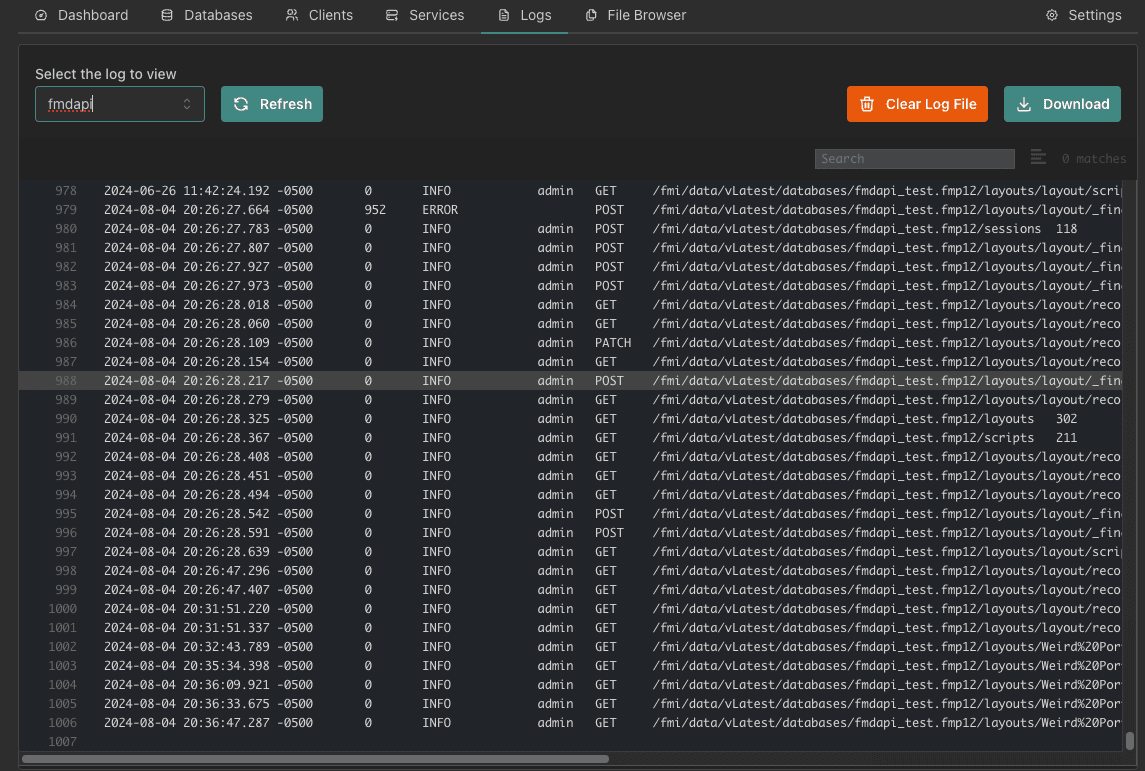
The Logs tab has an easy log viewer where you can view your FileMaker or OttoFMS logs. The logs are searchable and filterable, so you can find exactly the message you were looking for.
Settings
The Settings tab in the Server dashboard has sub tabs for Appearance settings for OttoFMS and Ottomatic Cloud Console (OCC), Offsite backup settings, and configuration settings for Ottomatic Servers and OCC.
Appearance
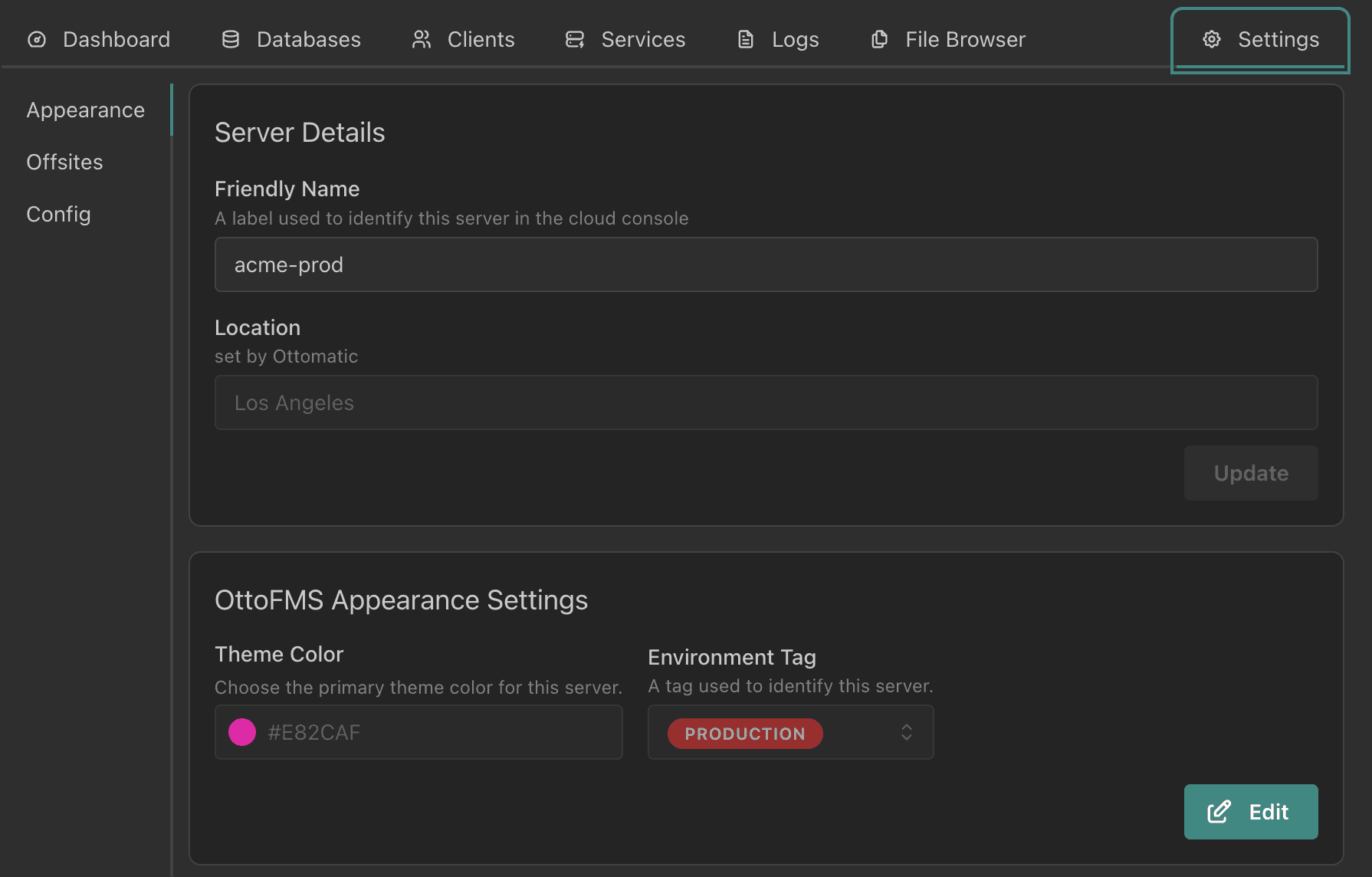
The Appearance tab has a section where you can change the Server Nickname and Location displayed in OCC and a section for changing the OttoFMS color and environment badge.
The Server Nickname is displayed in the browser tab and footer in OCC. If you also want to change the FileMaker Server name shown to FileMaker clients, turn on "Override FileMaker Server Name?" so the FileMaker client can access the server using this same name.
Offsites
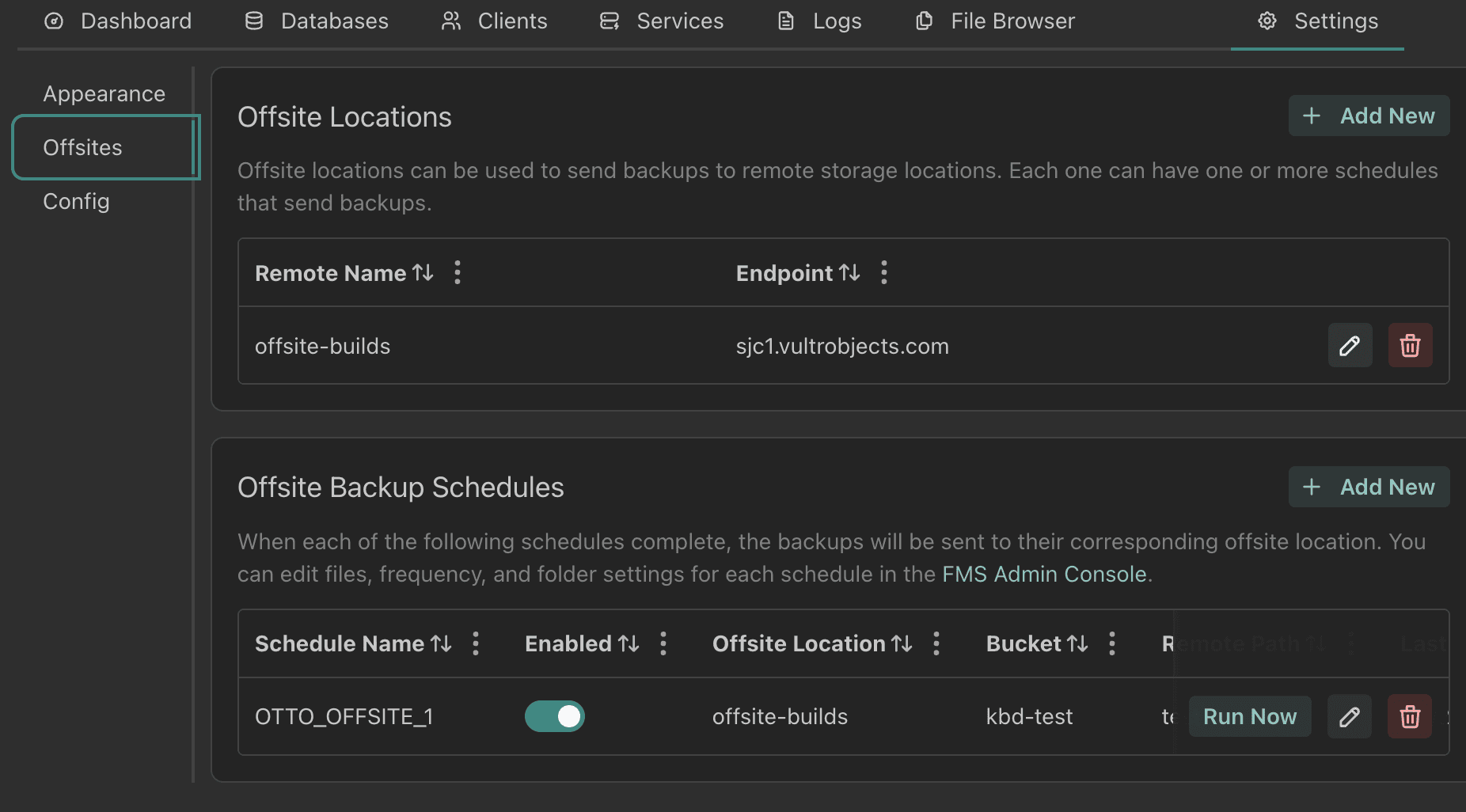
The Offsites Tab is a recreation of the OttoFMS Offsite settings in OCC. Here you can manage offsite locations and offsite schedules. If you need an offsite location to set up for offsites, check out Ottomatic Object Storage, which can instantly set up an offsite location on your server right from the Cloud Console!
Config
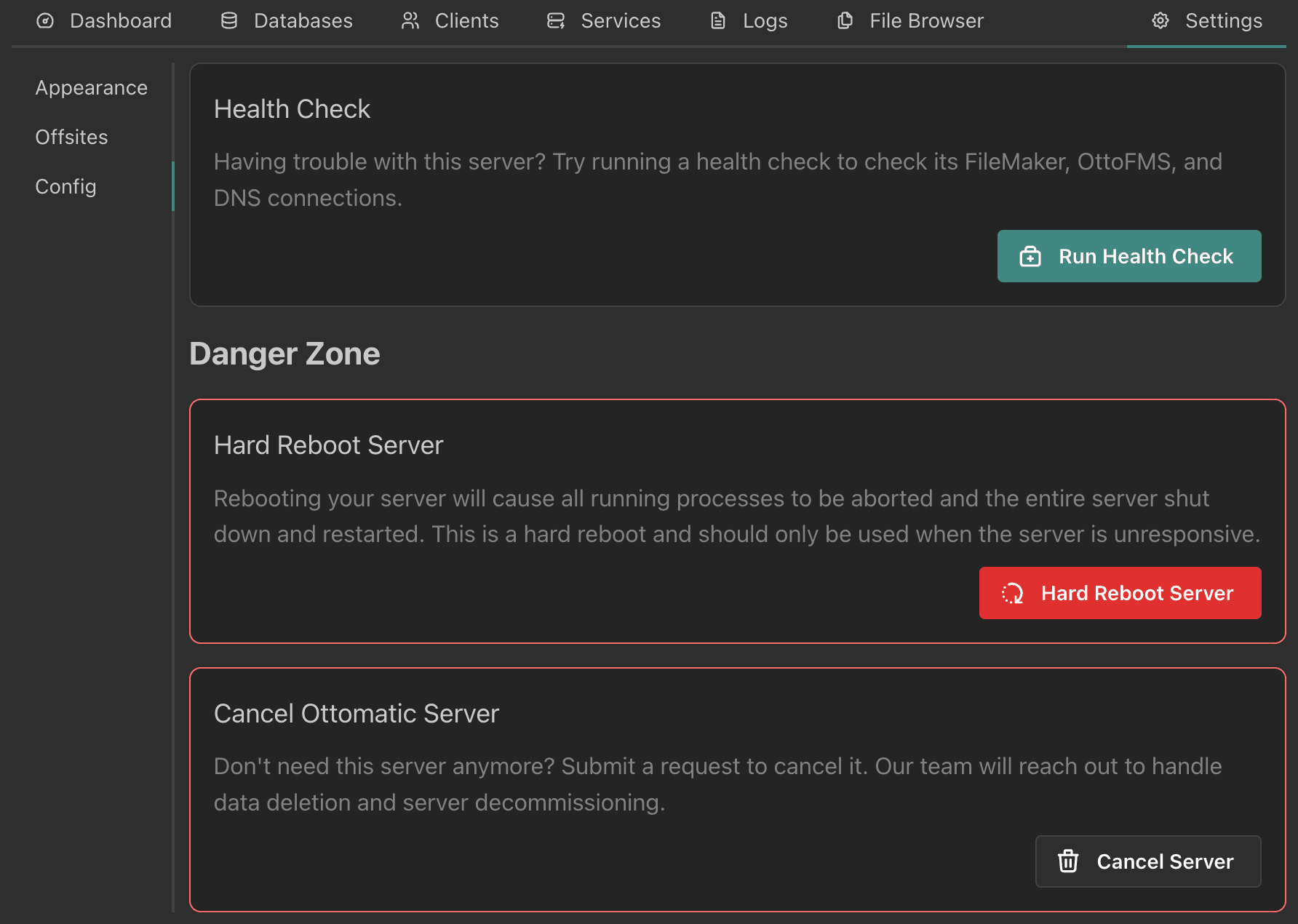
The Config tab is where you can manage your server and its settings. It has different options based on whether the server is an Ottomatic server or a connected on-premises (or hosted elsewhere) server. All servers have the option to run a health check, which will check DNS settings, internet connectivity, and FileMaker and OttoFMS connection and credentials.
Ottomatic Servers have the option to Hard Reboot or Cancel your server, while on-prem or hosted elsewhere servers have the option to remove the server from the Ottomatic Cloud Console
The Config tab also has a "FileMaker License" card with your server's masked license key (with a button to copy the full key), contract number, expiration date, and status, along with a link to your Claris account to download your license or software. Use "Refresh License Info" to pull the latest license details instead of waiting for the cached info to update.
If your server is on Ottomatic's commercial hosting license, this card links to your organization's License page instead, since the license is managed at the organization level.
Was this page helpful?
Servers Page
Browse, sort, and manage all of your servers in list or grid view, mark favorites, search files across servers, and run quick server actions.
Monitoring
View real-time CPU, disk, and network charts for your Ottomatic-hosted server and correlate them with FileMaker and OttoFMS logs over any time range.