Getting Started
Learn how to sign up and log in to the Ottomatic Cloud Console with Google, email, a passkey, or SMS, and how to secure your account.
How to Log in for the First Time
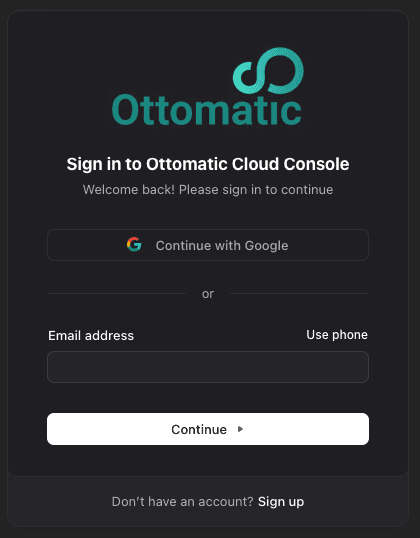
When visiting https://console.ottomatic.cloud, you can sign up with Google or with an email and password. If using an email and password you will need to verify your email address (and phone number if you've added it) before you can log in.
Logging in with Google
If you choose to sign up with Google, you will be redirected to Google's sign in page. After signing in, you will be redirected back to the Ottomatic Cloud Console.
When returning to the console later, you can sign in with Google by clicking the "Continue with Google" button.
Logging in with a Passkey
If you've set up a passkey for your account, you can sign in by clicking "Sign in with Passkey" and following your device's prompts.
Logging in with Email and Password
If you choose to sign up with an email and password, you will be asked to verify your email address. After verifying your email address, you will be able to log in with your email and password.
If you forget your password, you can reset it by clicking the "Forgot password?" link on the login page.
Logging in with a Phone Number
If you've added a phone number to your account, you can sign in with your phone number and password. You can also select "Sign in with SMS code instead" to receive a one-time code by text message and sign in without your password.
Securing your account
Head to Settings → Security to set up two-factor authentication (using an authenticator app, with backup codes provided in case you lose access to it) and to add passkeys for faster, password-less sign-in.
Was this page helpful?