Settings
Configure OttoDeploy defaults, tags, notifications, and other app-wide settings that control how deployments and builds behave.
Default Advanced deployment settings
Setting this to "on" will make it the default for new deployments. Existing deployments will not be affected.

Open OttoFMS console when running a deployment
Setting this to "on" will open the OttoFMS console automatically when a deployment is started, so that you can watch the logs. This also applies when running a build. It is skipped for scheduled runs, since they don't start immediately. See Sending Deployments for more on watching a run in progress.

Fill credentials from build
Having this setting enabled will fill the source credentials on a deployment from the build when using a build as a source. This setting is on by default.

Tags
Tags are colored labels you create to organize and filter your deployments, builds, and servers. You can create and color tags in Settings, choosing from 12 available colors.
You don't have to create tags ahead of time — you can also create a new tag on the fly by typing a new name into any tag field and selecting "+ Create".
Tags are saved in the OttoDeploy file, so they're shared by everyone who uses it. Deleting a tag removes it from the tag picker, but it stays on any deployments, builds, or servers that were already tagged with it.
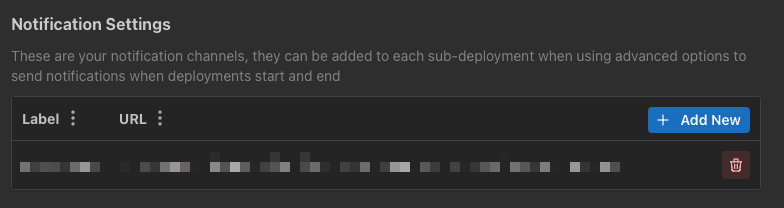
Notification Settings
Notifications can be set up in the settings screen. These notification channels can then be added to each sub-deployment to receive notifications when a deployment is started, completed, or fails. Deleting a notification target from the settings will not affect existing deployments, but will prevent new deployments from selecting that target.
Pause Scripts
The Pause Scripts button will open a window and pause all running scripts in OttoDeploy. Closing the window it opened will resume the scripts. This setting is intended to be used if you are trying to debug other FileMaker files while running OttoDeploy. Pausing the running scripts in OttoDeploy will avoid any conflicts with the scripts you are trying to debug.

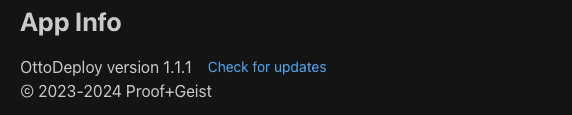
App info
Shows the current version of the app, and has a button you can click to check for updates.
Was this page helpful?