Deployments
Set up, organize, and manage your deployment configurations from the list and detail views in OttoDeploy.
The Deployments view is where you can setup and manage your deployments. You can access the Deployments view by clicking on the Deployments link in the left hand navigation. Read more about Deployments.
List View
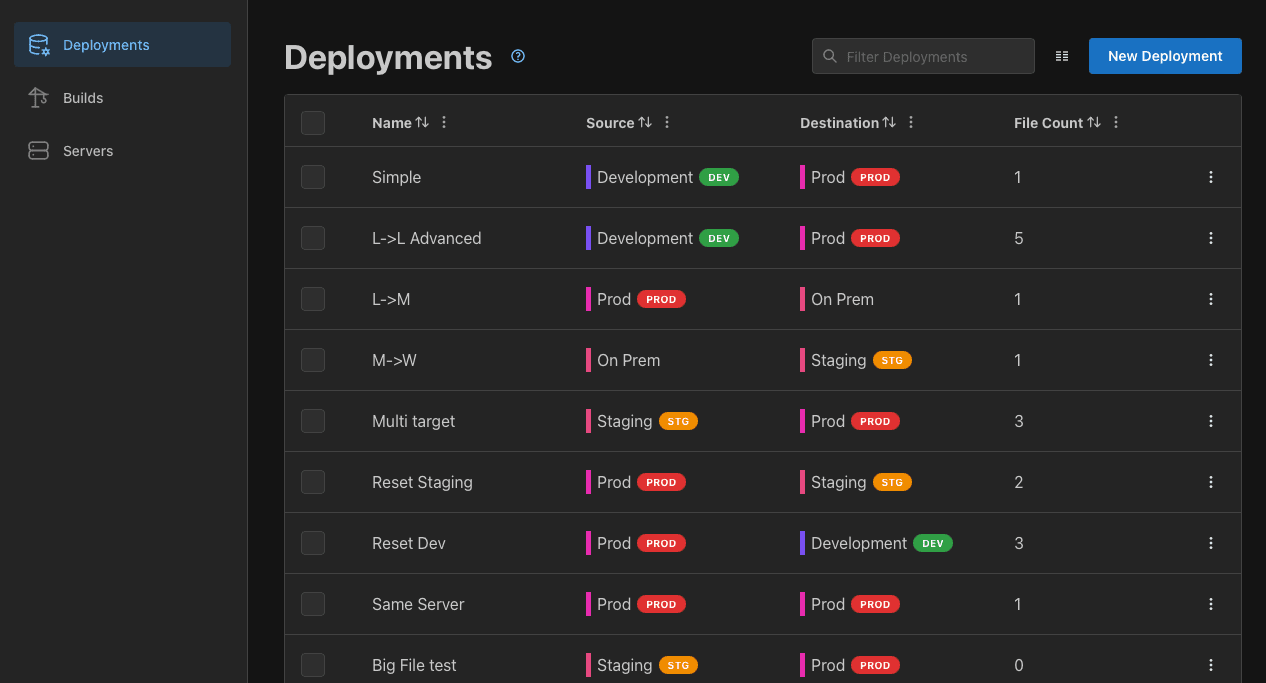
On the list view you can see all the deployment configurations that you have setup. You can add a new deployment configuration by clicking the New Deployment button. Click on any of the listed deployments to see and update the details of that deployment.
The Tags column lets you filter the list by tag. You can also group the list by destination server or by tags from that column's header menu — your grouping choice is remembered the next time you open OttoDeploy. Tags are applied to a deployment from its detail view.
Deployment View
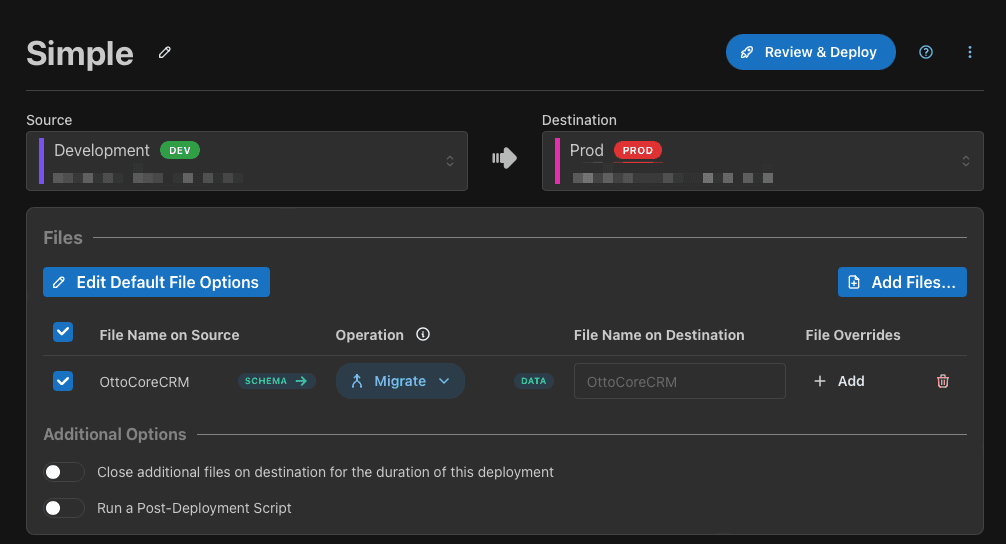
Each Deployment has a detail view where you can see and update the details of that deployment. You can access the detail view by clicking on any of the listed deployments in the list view.
Deployment Details
The menu in the top right can be used to perform actions on each deployment:

Copy Deployment JSON: This will open up a window where you can review the JSON object that will be sent to OttoFMS on your destination server. There is a setting in the opened window to hide secrets, this can be toggled to hide any secrets that are in the JSON object. If you send your deployment JSON to Proof+Geist for support, please make sure to hide secrets before sending.
Use Advanced Options: Toggles the advanced options for the deployment. The advanced options are described in the Advanced Options section.
Create Build from Deployment: Turns this deployment's file set into a reusable build. See Creating a Build from a Deployment for details.
Duplicate: Creates a copy of this deployment.
Delete: Deletes this deployment from OttoDeploy. This action cannot be reversed.
Was this page helpful?
Hybrid App
Why OttoDeploy is built as a hybrid FileMaker app with a modern web UI, letting you self-host your deployment data while getting easy, seamless updates.
Sending Deployments
Review connected clients, start or schedule a deployment, and watch its progress live before it runs on the destination server.