Using API Keys
Create and use OttoFMS Data API Keys and Admin API Keys to access the FileMaker Data API, the FileMaker Admin API, and the OttoFMS Developer API without handling credentials.
Introduction
OttoFMS offers two kinds of API Keys, and which one you need depends on what you are trying to reach:
| Key type | Stands in for | Use it to call |
|---|---|---|
| Data API Key | FileMaker credentials for one or more files | The FileMaker Data API and OData API |
| Admin API Key | Your FileMaker Server Admin Console login | The OttoFMS Developer API and the FileMaker Admin API |
Both kinds are created and managed on the API Keys page of the OttoFMS web console, and both are long-lived — they don't expire or need to be refreshed the way a FileMaker access token does.
Data API Keys
OttoFMS provides a Data API Key service to make it easier to use the FileMaker Data API by handling the token exchange and refreshing that you need to do to use the Data API. Without OttoFMS you need to login with a user name and password first to get an access token then you can use that token to make calls to the Data API. With OttoFMS you can set up a Data API Key to access a given file with a user name and password and then use that Data API Key to make calls to the Data API. OttoFMS will handle the token exchange and refresh for you.
The Data API Key can be safely given to 3rd party integrations and services to access your FileMaker data without giving them access to your FileMaker username and password.
Before you begin
Before you begin you should check off everything in this list:
- OttoFMS is running on a FileMaker server version 19.6 or later
- The FileMaker Data API is enabled on the server
- The FileMaker File(s) you want to access are hosted on the server
- You have a username and password for the file(s) that have the correct privilege set to access the Data API
- You are be able to make Data API Request the native way without using a Data API Key.
If you don't have this checklist completed, you may struggle with the steps below.
Create a Data API Key
Once you are sure your server is ready, create a Data API Key, by following these steps.
Login to OttoFMS
Login to the OttoFMS web console.
Navigate to API Keys
Navigate to the API Keys page in the web console.
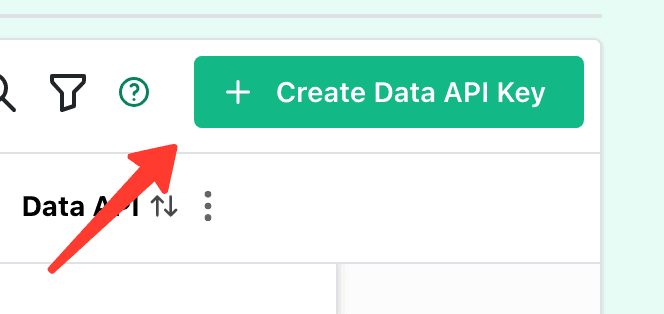
Create a new Data API Key
Click the "Create Data API Key" button in the upper right to create a new Data API Key.
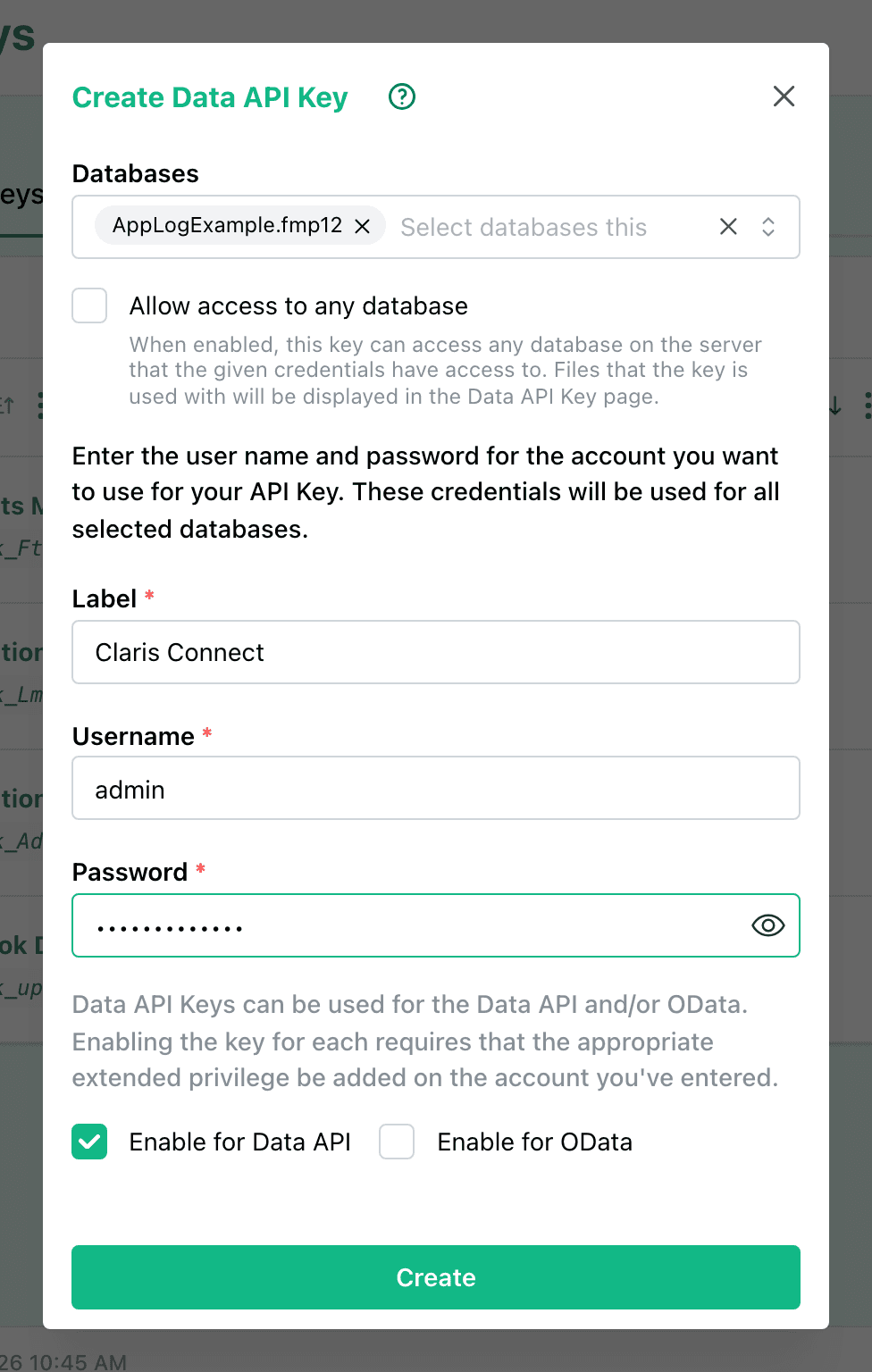
Fill out the form
Fill out the form in the modal dialog that pops ups. When you have entered everything correctly click the Create Button. If you have everything configured correctly and you have the right user name and password, you won't get an error.
Copy the Data API Key
If you have everything correct you will be able to copy the newly created Data API Key.
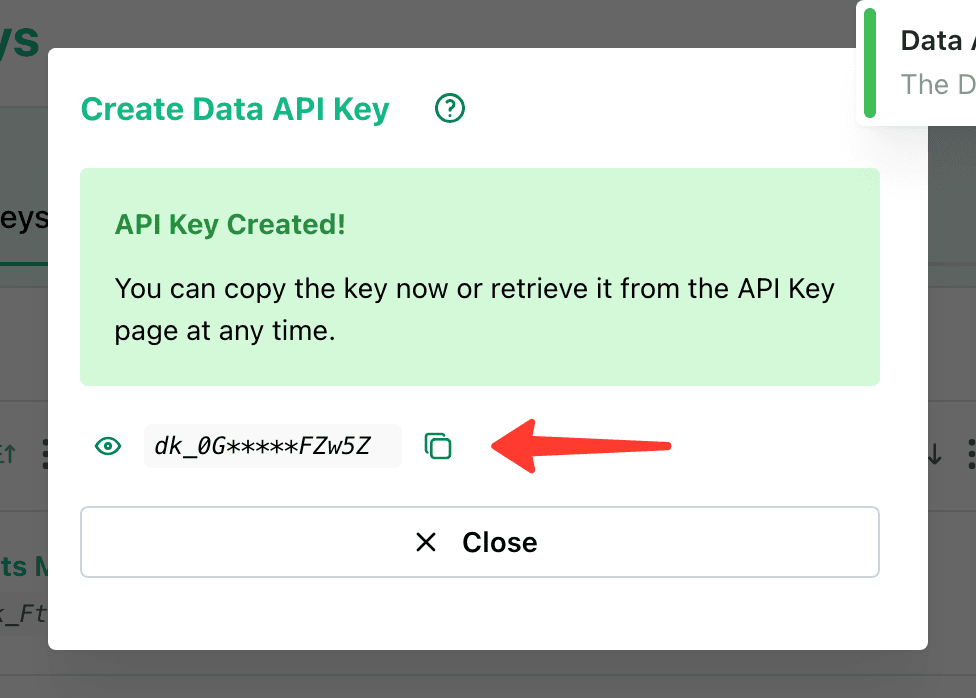
Success
You have successfully created a Data API Key. You can now use this Data API Key to access the FileMaker Data API.
Using a Data API Key to make a Request
Use a different url
Important You will need to use a slightly different url when access the data api with a Data API Key.
Add /otto just before the /fmi/ segment in any Data API request. This will send the request through OttoFMS and it can use the Data API Key.
For example, change this URL path:
/fmi/data/vLatest/databases/{database.fmp12}/layouts/{layout}/recordsto this path
/otto/fmi/data/vLatest/databases/{database.fmp12}/layouts/{layout}/recordsFile extension matters Always add .fmp12 to the end of the database name
in the url.
Using Data API Keys with Multiple Files
With OttoFMS 4.15.0 and later, a single Data API Key can be used for multiple files if the credentials are the same for all the files. To use a Data API Key with multiple files, simply choose multiple files during Data API Key creation or editing. You can also optionally turn on the "Allow access to any database" option to allow this Data API Key to be used for any file that has those credentials, regardless of whether you've selected it or not.
Authentication
Pass the Data API Key to the request in one of 2 ways.
- As Bearer Token in an Authorization header, just like you would do with the access token.
- As query parameter
?apiKey={API_KEY}
https://your.server.com/otto/fmi/data/vLatest/databases/{database.fmp12}/layouts/{layout}/records?apiKey={API_KEY}- as basic auth in the url
https://apiKey:{API_KEY}@your.server.com/otto/fmi/data/vLatest/databases/{database.fmp12}/layouts/{layout}/recordsVideo
Here is a video that shows how to create a Data API Key and use it to make a request to the Data API.
Admin API Keys
An Admin API Key is a long-lived key that stands in for your FileMaker Server Admin Console credentials. Use one to authenticate:
- The OttoFMS Developer API — every
/otto/api/...endpoint. - The FileMaker Admin API proxy — the FileMaker Admin API, reached through OttoFMS at
/otto/fmi/admin/v2. - The OttoFMS Admin MCP server.
Because the key is long-lived, you don't have to create and tear down an admin session for every call the way you do with the FileMaker Admin API directly.
An Admin API Key has the same power over your server as your Admin Console login. Treat it like a password: store it in a secrets manager, never commit it to source control, and delete keys you are no longer using from the API Keys page.
Before you begin
Before you begin you should check off everything in this list:
- OttoFMS is installed and running on your FileMaker Server
- You have the username and password for a FileMaker Server Admin Console account
- You can log in to the OttoFMS web console
Create an Admin API Key
Login to OttoFMS
Login to the OttoFMS web console.
Navigate to API Keys
Navigate to the API Keys page in the web console, then switch to the Admin API Keys tab.
Create a new Admin API Key
Click the "Create Admin API Key" button in the upper right.
Fill out the form
Give the key a label that describes what will use it, then enter the username and password for a FileMaker Server Admin Console account. Click Create. If the credentials are correct, you won't get an error.
Copy the Admin API Key
Copy the newly created key and store it somewhere safe. Admin API Keys start with ak_.
You can also create Admin API Keys programmatically with the Create an Admin API Key endpoint.
Using an Admin API Key with the OttoFMS Developer API
Pass the key as a bearer token in the Authorization header. There is no /otto prefix to add here — the OttoFMS Developer API endpoints already begin with /otto/api/.
curl https://your.server.com/otto/api/info \
  -H "Authorization: Bearer ak_123987"
The header is the only thing you add — the paths, request bodies, and responses are exactly as documented in the API reference.
Using an Admin API Key with the FileMaker Admin API
The same key also works against the FileMaker Admin API through the OttoFMS Admin API proxy. Add /otto just before the /fmi/ segment, so the base URL becomes:
https://your.server.com/otto/fmi/admin/v2Then send the key as a bearer token on each request:
Authorization: Bearer ak_123987Admin API Keys are passed in the Authorization header. The apiKey query
parameter and in-URL basic auth shown above for Data API Keys do not apply to
Admin API Keys.
Was this page helpful?
Low Downtime
Use OttoDeploy's Publish Build option to pre-build and pre-fetch deployments, minimizing file downtime during strict maintenance windows.
How to setup webhooks
Set up, register, and test webhooks in OttoFMS so your FileMaker file can receive and process notifications from third-party services.